
How to find the WiFi code effortlessly in Windows 10?

Publier le : 19 août 2019 Temps de lecture : 0 s

Tired of returning your Internet box every time a guest asks you to connect to WiFi? You probably know this: macOS and some Linux distributions provide access to a graphical manager that makes it very easy to retrieve any password that has been entered on the machine. To do this, we will :
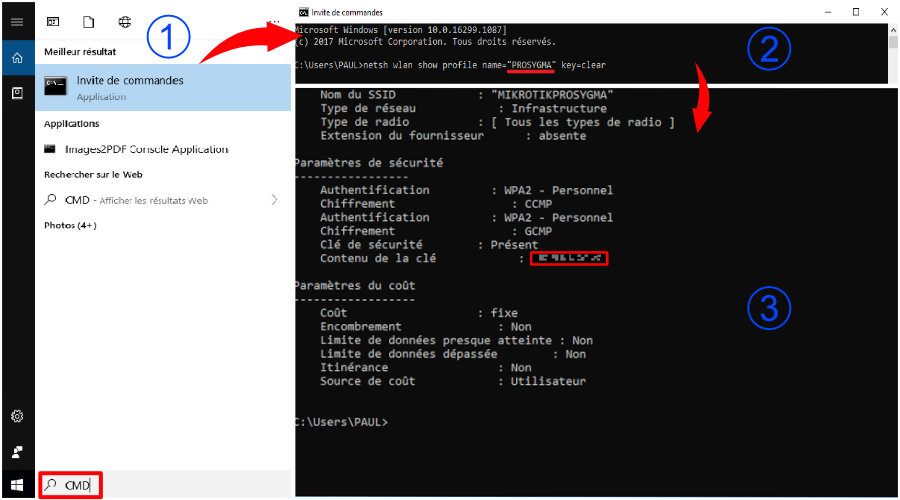
1. Open your favorite Command Prompt (Powershell or Cmd)*

2. Type the following command by replacing SSID with the name of the WiFi network

Example: netsh wlan show profile name= »SSID » key=clear
3. You will find the precious sesame in the Security Settings section in the Key Content line as shown in the illustration.

How to find the WiFi code effortlessly in Windows 10?

Publier le : 19 août 2019 Temps de lecture : 0 s

Tired of returning your Internet box every time a guest asks you to connect to WiFi? You probably know this: macOS and some Linux distributions provide access to a graphical manager that makes it very easy to retrieve any password that has been entered on the machine. To do this, we will :

1. Open your favorite Command Prompt (Powershell or Cmd)*

2. Type the following command by replacing SSID with the name of the WiFi network

Example: netsh wlan show profile name= »SSID » key=clear
3. You will find the precious sesame in the Security Settings section in the Key Content line as shown in the illustration.

Retour en haut